
Firmware can be updated over Wi-Fi. To enable the Wi-Fi connection, the SSID and password must first be configured via Bluetooth. If this setup is not convenient, Wi-Fi connection is also possible by configuring your access point’s SSID and password as shown below, which will match the factory default settings stored in the product
Default SSID : lampora / PASSWORD : lamporaa
ALITE2 Device

- Select setup menu
- Press F1 to select the Radio tab
- Rotate the F1 dial to choose Bluetooth
- Press and hold F2
- The device will be reboot
LAMPORA APP
Play this video
- Create new project
- Choose Bluetooth menu in the project
- Add bluetooth device: Press ‘+’ button on the top right side
- Choose Alite2 device and Press next button
- Press done button (Refer to the app manual for the other device parameters)
- A chain icon next to the device name indicates that it is connected
- Open the settings screen by using the arrow button on the right
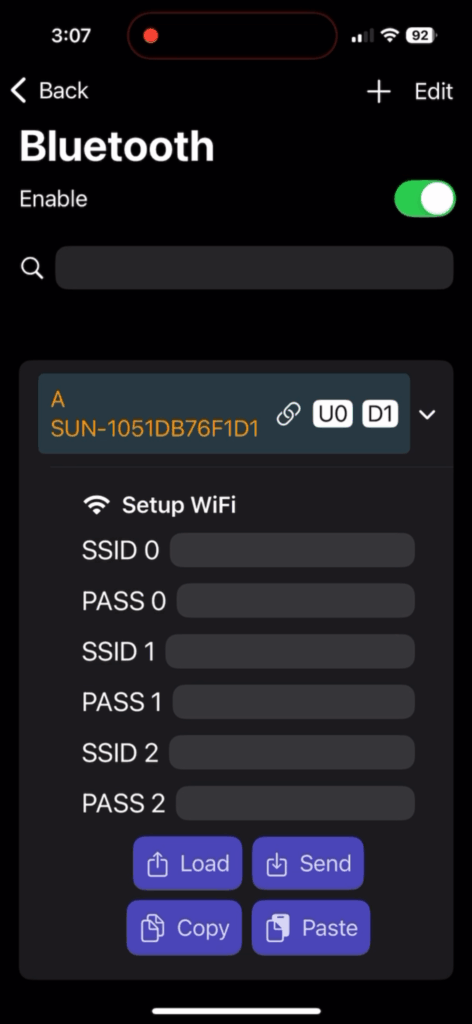
- You can set up a total of three Wi-Fi access points
- LOAD : You can read values from the device
- SEND : You can save values to the device
- COPY & PASTE : You can copy 3 wifi values to the other device
ALITE2 Device


- Once the Wi-Fi parameters have been configured,
- Changing the setting to Artnet will allow Wi-Fi connection
- The IP address obtained through Wi-Fi will be shown at the bottom of the screen after a brief delay
- Press F1 to select H/W tab
- Select upgrade firmware
- Press and hold F2
- Please do not turn off the power and wait until the update is completed and the device reboots. This process takes about 5 to 10 minutes